
Drop 3D models into real photos.
Upload a photo of your space, place GLB/STL models with physically accurate perspective and scale, then run an AI pass for a photorealistic finish. No software to download. Minimal learning curve. Try the demo below.
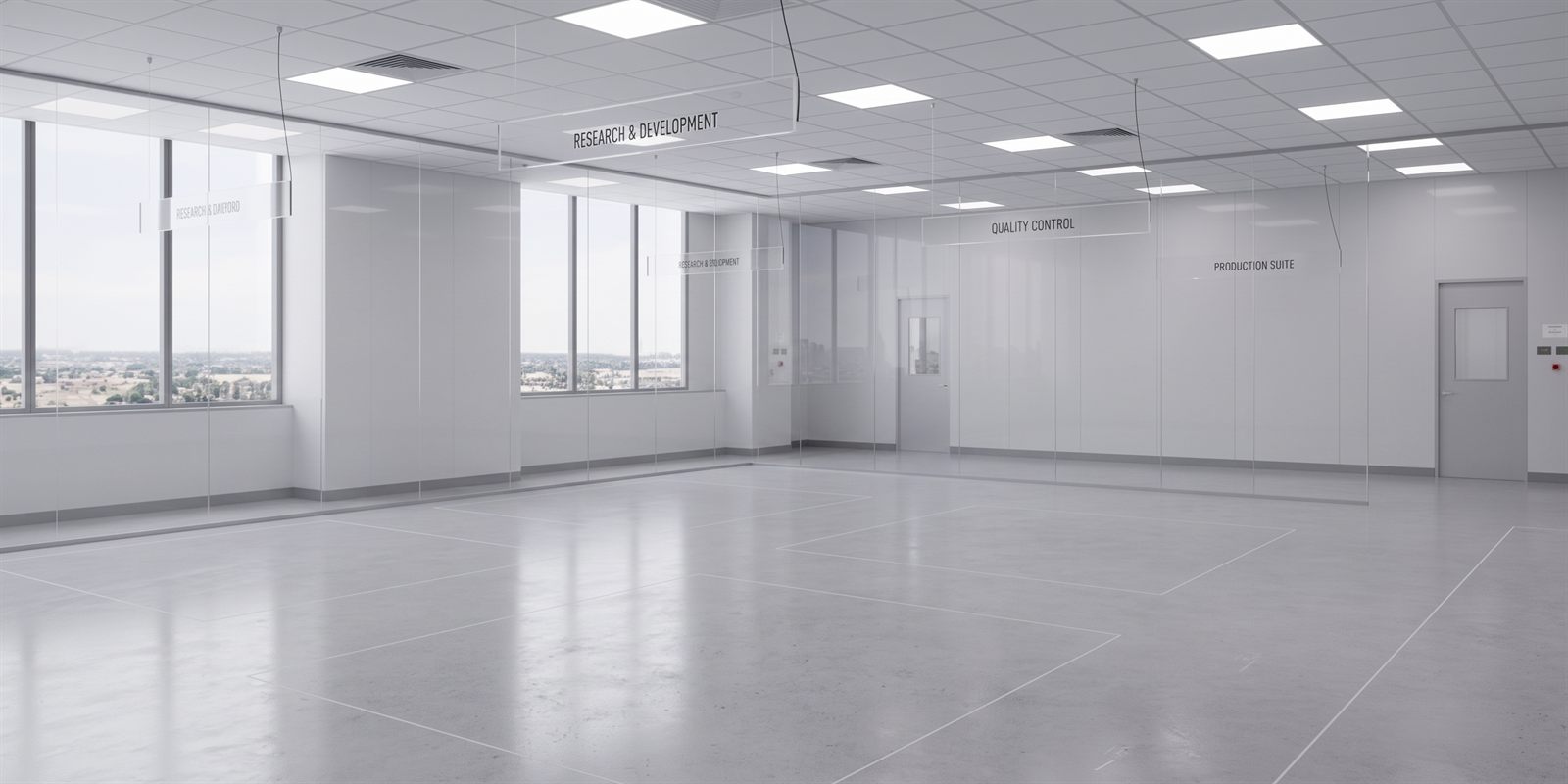
A real GLB on a real photo, running the app's own placement math. The horizon, camera height and model are pre-set here — in the studio you set them for your own photo, then add as many models as you like.
Then the AI pass makes it a photograph.
Once the placement is right, Model2Photo sends your untouched photo and the composite to Google's Nano Banana Pro with one instruction: keep everything exactly where it is, and light it like it was really there. Contact shadows, reflections, colour grade, materials.
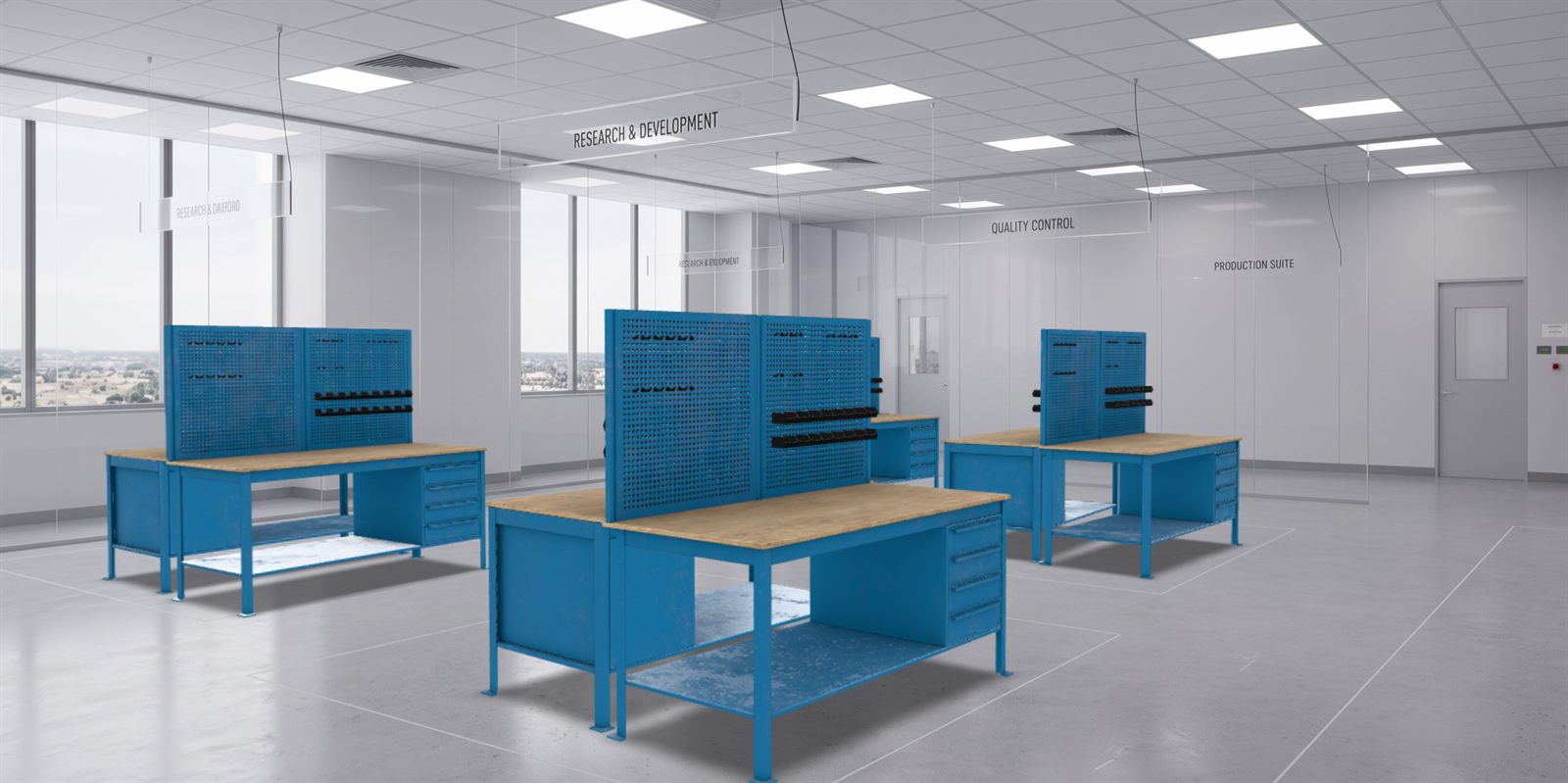 Raw 3D composite
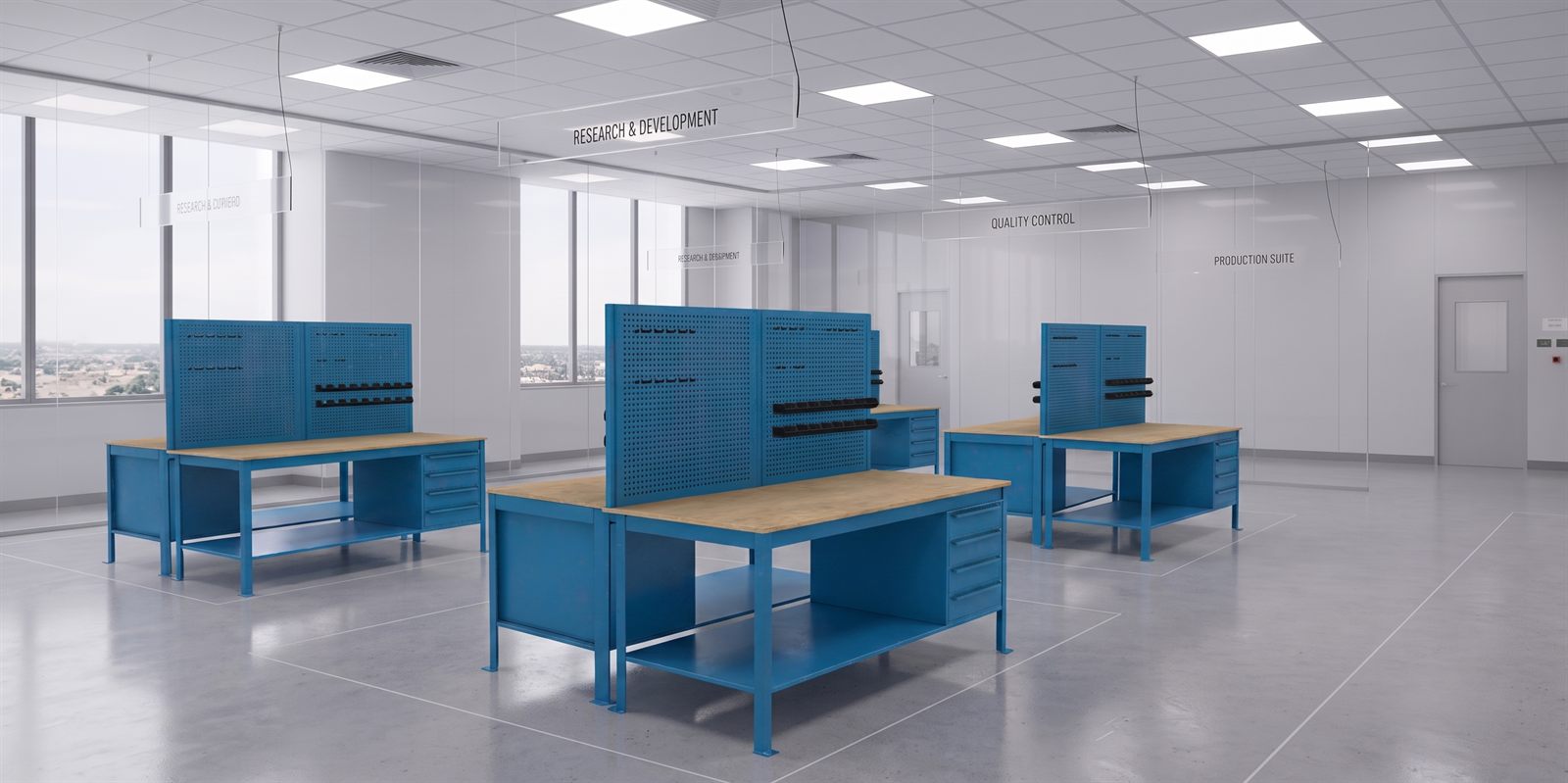 After the AI pass
One real run, both halves: the capture straight out of the studio, and what came back from the pass on that exact capture. Same room as the demo above. Drag to compare.
How it works
Three steps from a photo of an empty room to a finished, photorealistic composite.
Set the perspective
Trace two parallel lines in your photo and mark one object of known height. Model2Photo derives the horizon and camera height, so models land on the floor at the right size and angle — no eyeballing.
Place your 3D models
Drop in GLB or GLTF files. Drag to position, spin to rotate, and assign real materials per part. Multiple models can share a scene with correct depth ordering and contact shadows.
Make it photorealistic
Capture the composite, then run the AI pass. It relights your models to match the room and renders the finishes you described — turning a flat 3D render into a convincing photograph.
Built for believable composites
The details that separate a real-looking render from an obvious one.
Physically-based floor placement
Perspective and scale come from real geometry — horizon, camera height, and each model's real-world height — not from dragging until it looks about right.
Your models stay on your device
GLB files are never uploaded to our servers. Sessions save a fingerprint and reattach models from your browser cache, or prompt you to re-pick the file.
Per-part materials & finishes
Assign real finishes — brushed aluminium, oak, powdercoated steel — to individual parts, and the AI pass renders them as you described.
Multi-model scenes
Compose several models in one photo with correct depth ordering, per-model lens, and keystone lean that matches the photo's own camera tilt.
AI photorealistic pass
The studio hands you the exact prompt and both images to run in your own Gemini session. The model relights your objects to the room and keeps the background photo intact. Running it inside the app arrives at launch.
Save & reopen sessions
Save the whole stage — photo, perspective, placements, finishes — and pick it back up later, on this device or anywhere you re-attach the models.
Try it on your own space
Create an account, upload a photo, and place your first model in minutes. The studio runs entirely in your browser.
Model2Photo is in beta. Some finishes and edge cases are still being refined — your feedback shapes what we fix next.